Introduction
What You Can Do With Connected Service
Private eCall
Roadside Assistance
Remote Control
Vehicle Monitor and Alert
Find My Car
Send Directions to Car
Guest Driver Alert
Stolen Vehicle Assistance
Software Update
Temporary Deactivation
About Connected Service
Installing the MyMazda APP
Registering Your User Information
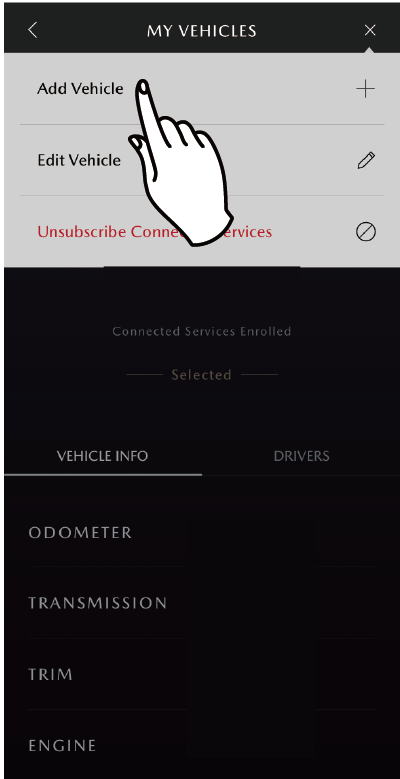
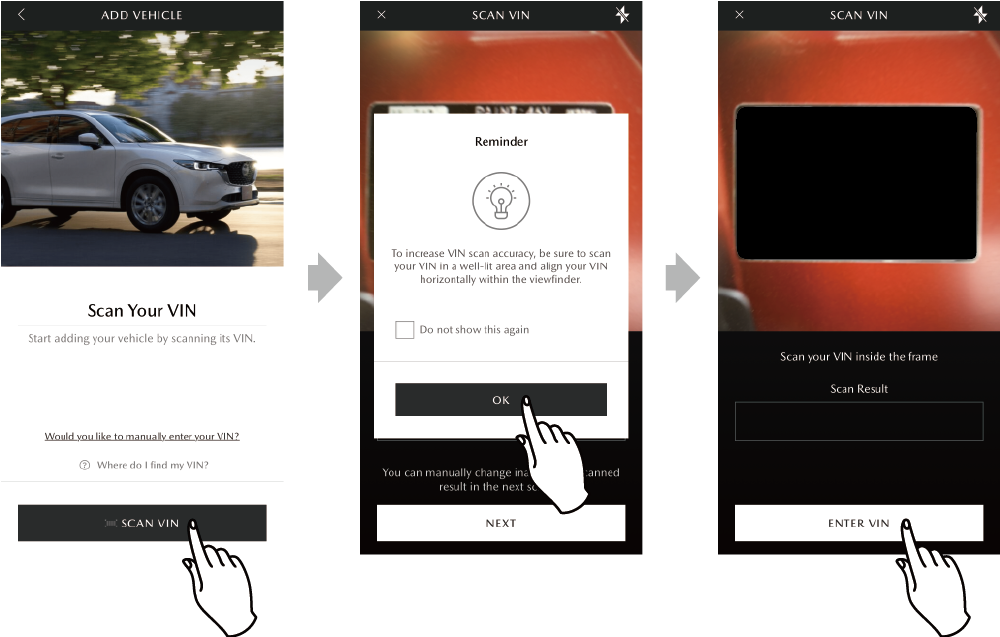
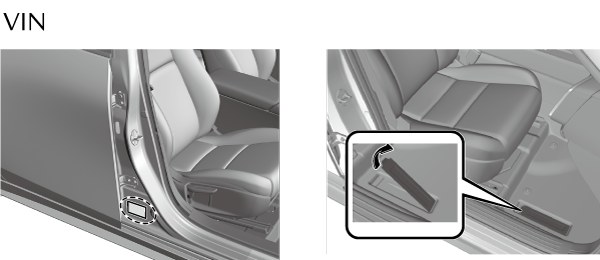
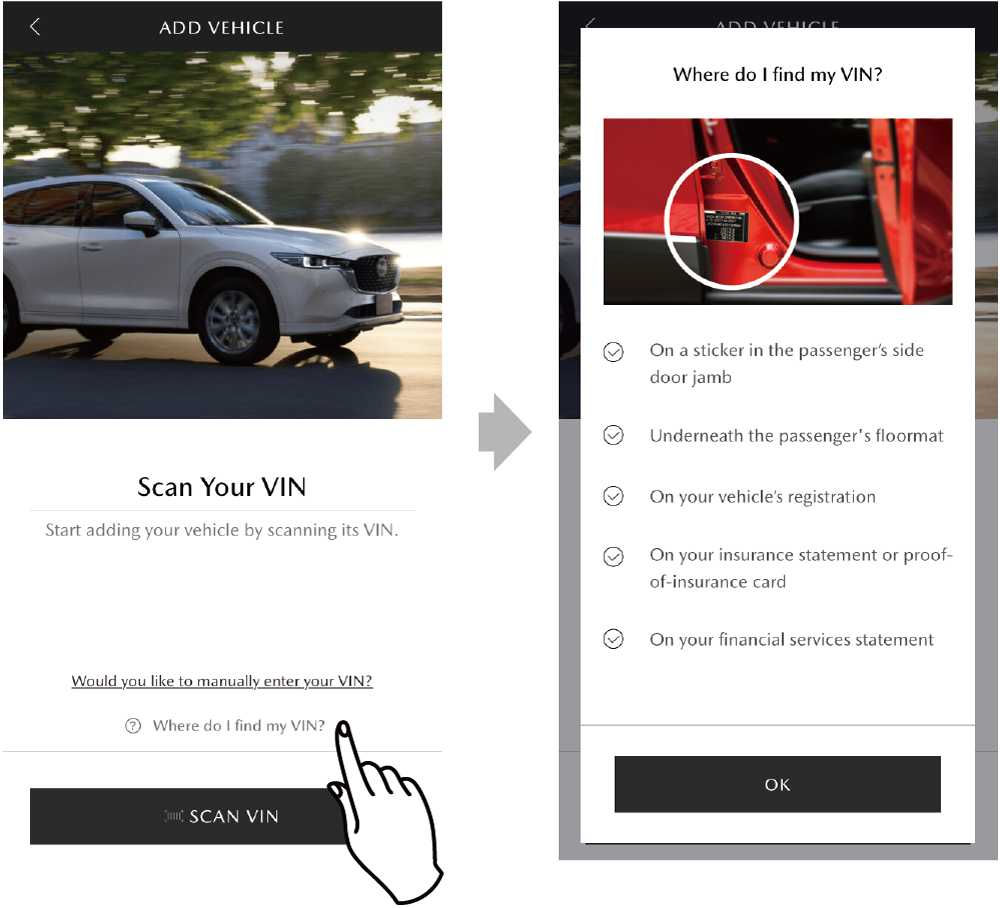
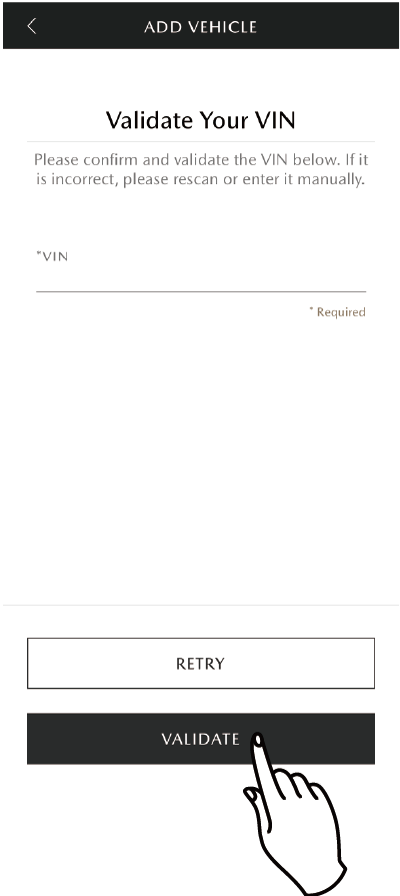
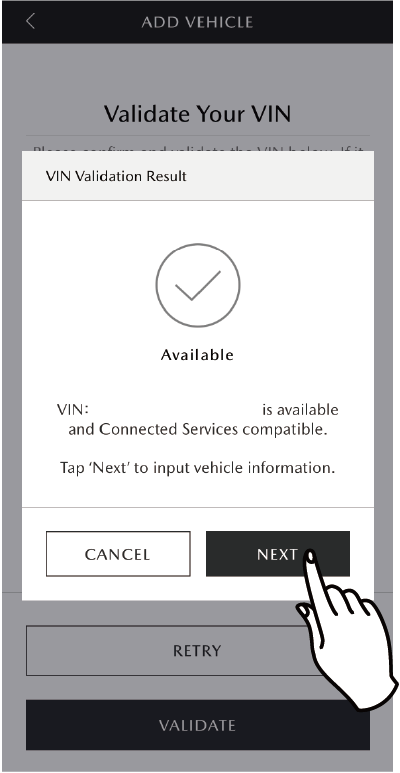
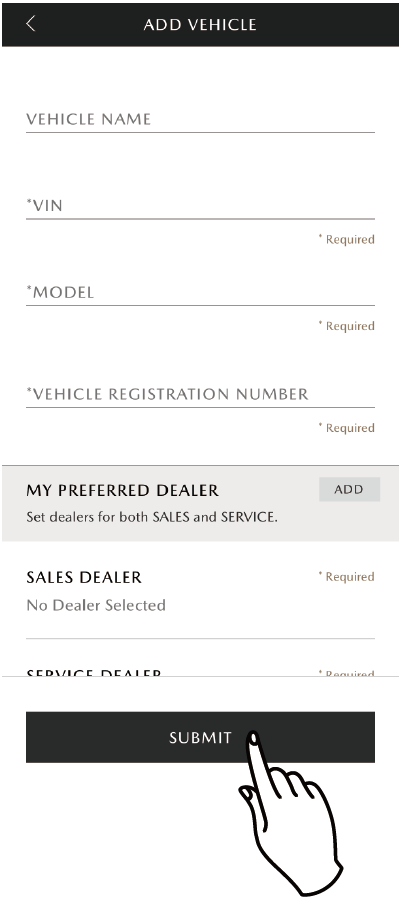
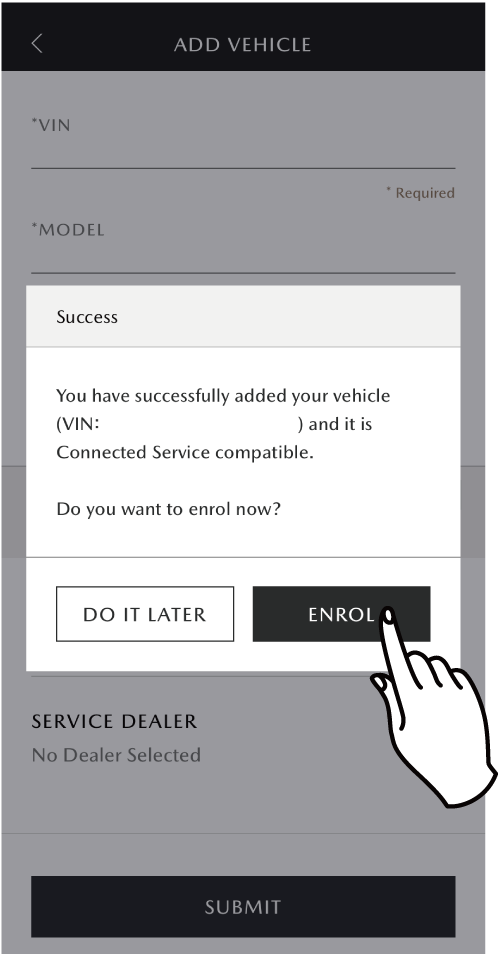
Registering Vehicle Information
Registering Connected Service
Changing Registered Information
Using Connected Service
Explanation of the Home Screen
Private eCall
Roadside Assistance
Remote Control
Vehicle Monitor and Alert
Find My Car
Send Directions to Car
Guest Driver Alert
Stolen Vehicle Assistance
Software Update
Temporary Deactivation
Menus of the MyMazda APP
MyMazda APP Main Navigation Menu
MyMazda APP MAP
Secondary Driver
Other Information