Using Connected Service

Menus of the MyMazda APP

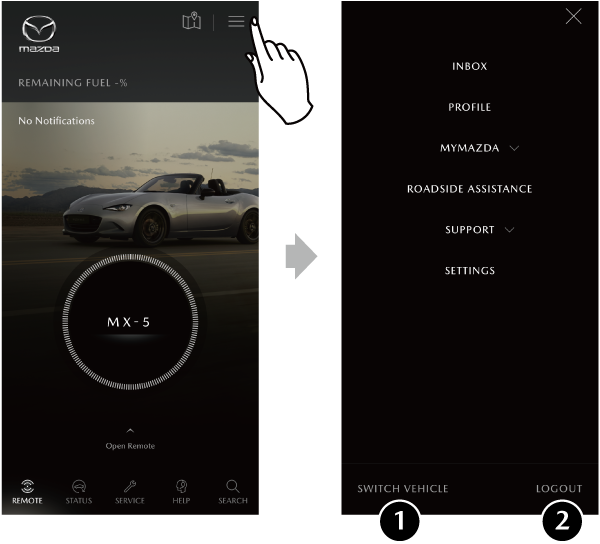
When the menu tab on the home screen is touched, the MENU screen opens and the following items are displayed:

1 SWITCH VEHICLE With the MyMazda APP, remote operation and information confirmation can be done for a single vehicle. If multiple vehicles have been registered and you want to switch to a different vehicle, touch the vehicle and then touch CONFIRM.
2 LOGOUT Logs you out of the system.
Registering Your User Information/System Login/Logging Out of the System

INBOX

With INBOX, the information received by the MyMazda APP can be confirmed.

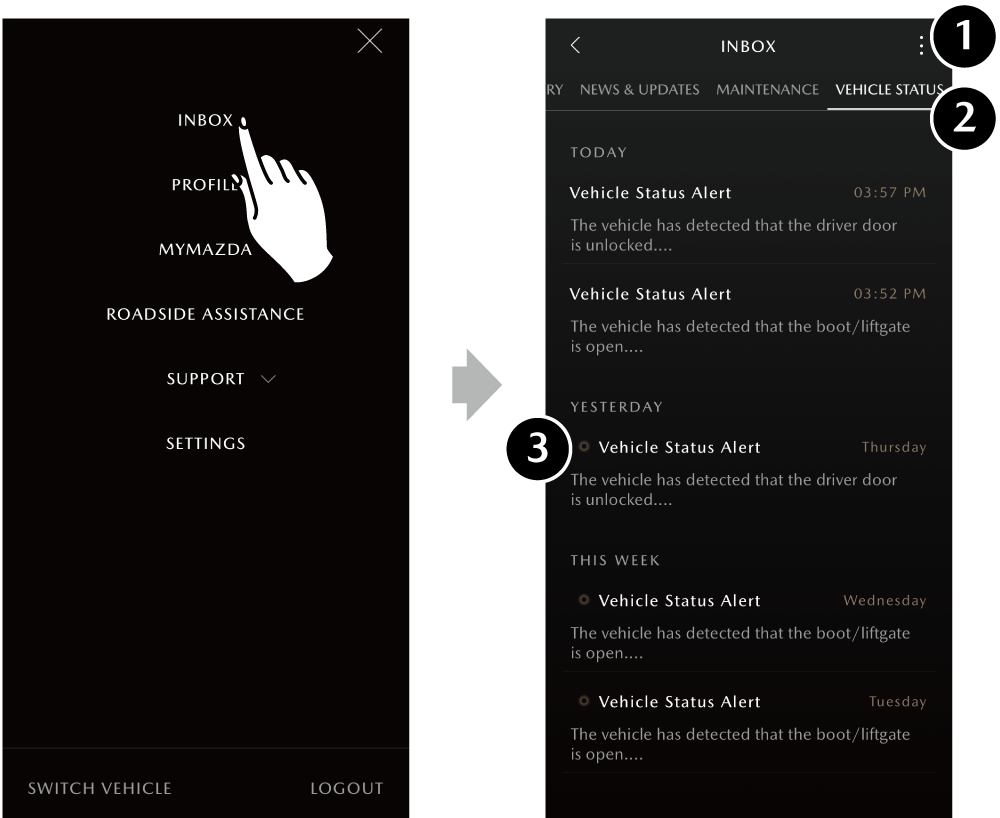
Select INBOX from the MENU.
The small numeral next to INBOX indicates the number of unread messages.

  • Messages are displayed together with the day they were received and grouped such as [Today] and [This Month].
  • Messages include the title and the received date with the message text displayed on two lines.
  • When confirming the details of a message, touch the message.
1 Action Tab Messages can be deleted and settings can be changed.
2 Category Tab Switches the message category.
  • Safety & Security
  • Activity History
  • News & Update
  • Maintenance
  • Vehicle Status
3 Flag Unread message
Important message
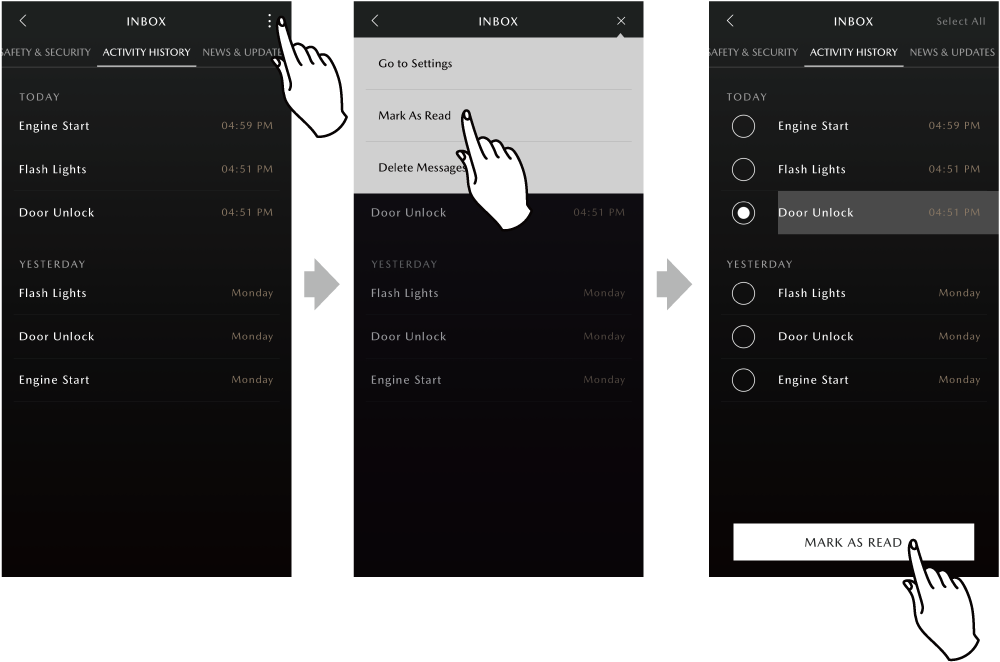
  • You can select/mark unread messages in your inbox as read all at once.
    If you want to mark messages as read all at once, touch [Select All] in the upper right corner of the received list.
  • You can select/delete messages in your inbox all at once.
  • Category Tab

    • IMPORTANCE NOTICE
      You can confirm important notifications about Connected Service and marketing.
    • SAFETY & SECURITY
      Provides a malfunction notice from the vehicle. Although information about serious malfunctions are displayed on the Home screen and the standby display of the device, all information including information other than that of severe malfunctions can be confirmed in Safety & Security.
      Roadside Assistance
    • ACTIVITY HISTORY
      You can check the results of an operation that was made using Remote Control. This message is the same information that is displayed by pop-up when the Remote Control is operated.
      Remote Control
    • INFORMATION
      You can check for special information from a Preferred dealer and notifications from Mazda.

      You can set the function not to receive information.
      Menus of the MyMazda APP/SETTINGS

    • MAINTENANCE
      You can check information related to maintenance in the Vehicle Health Report. If there is an important notification, it may be displayed on the home screen and the standby screen of the device, but all information can be checked here.
      Vehicle Monitor and Alert/Vehicle Health Report

    PROFILE

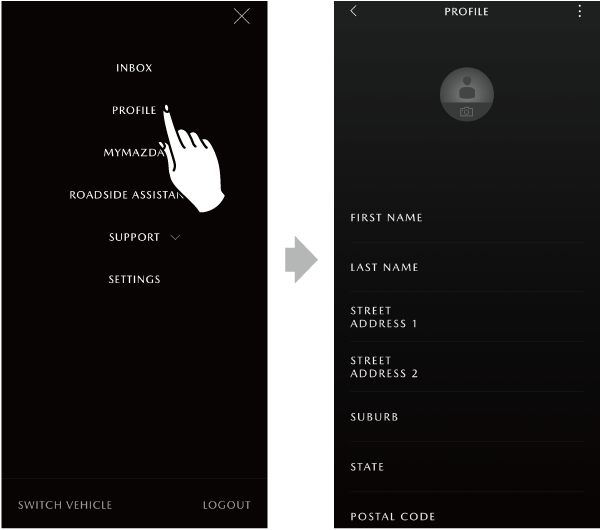
    With PROFILE, you can check registered user information and make changes.

    The following information can be updated by the Action Tab.

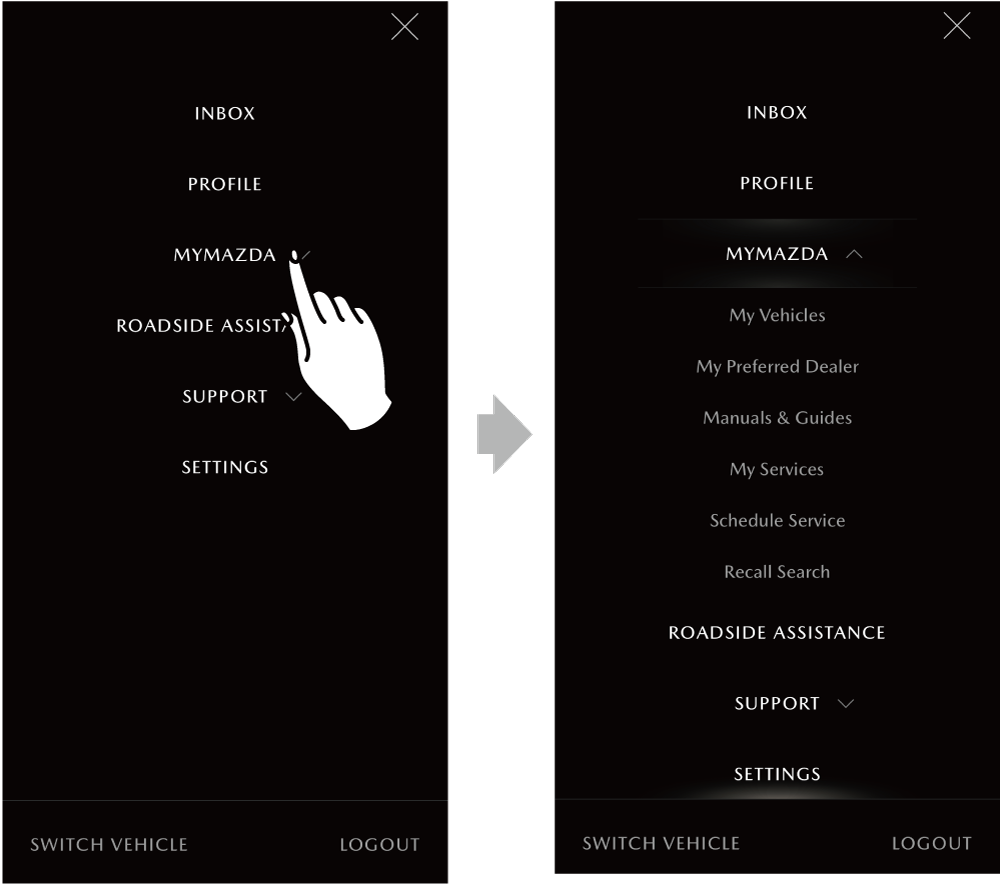
    MYMAZDA

    With MyMazda, you can check for information related to registered vehicles and Mazda dealers.

    MY VEHICLES

    You can check/set your vehicle information.

    The following information can be updated by the Action Tab.

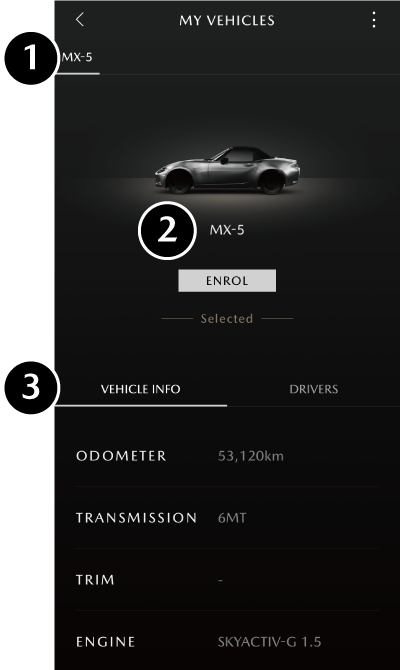
    1 Vehicle Tab If you have registered two or more vehicles, the target vehicles for the MyMazda APP can be switched.
    2 Vehicle Name Displays the vehicle name, model year, and VIN, and whether you are enrolled in Connected Service.
    3 VEHICLE INFO/DRIVERS Tab Switches the vehicle information and registered driver information to display. When you touch [MANAGE DRIVERS], you can register additional drivers, do editing, and make deletions.
    Changing Registered Information

    If you are not enrolled in Connected Service, the ENROL button is displayed in Vehicle Name. Touch ENROL to enroll in Connected Service.
    Registering Vehicle Information/Step 7

    MY PREFERRED DEALER

    You can confirm/set your preferred dealer.

    The following information can be updated by the Action Tab.

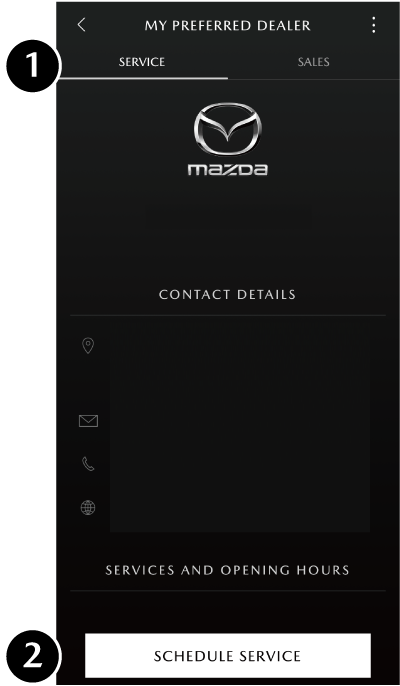
    1 SERVICE/SALES tab You can switch between the registered Service Dealer and the Sales Dealer display.
    2 SCHEDULE SERVICES Displays the service-in reservation screen to My Preferred Dealer.

    MANUALS & GUIDES

    Provides Owner's Manual and reference material.

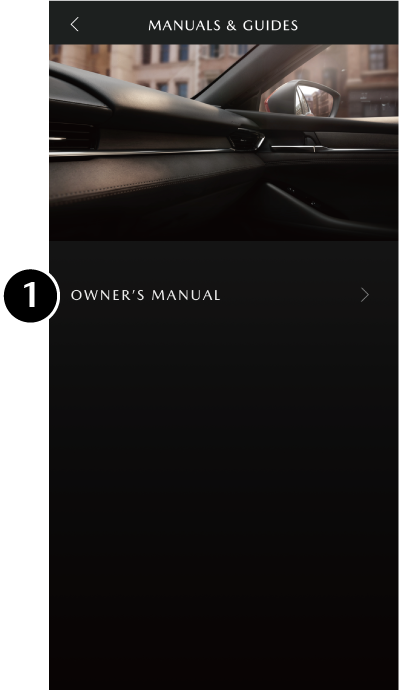
    1 OWNER'S MANUAL You can check the owner’s manual.
    • From the menu of Owner's Manual, you can read various manuals such as operation methods.
    • If the manual is PDF file, confirmation message is displayed.

    SCHEDULE SERVICE

    Enables a service appointment to be scheduled with the dealer.

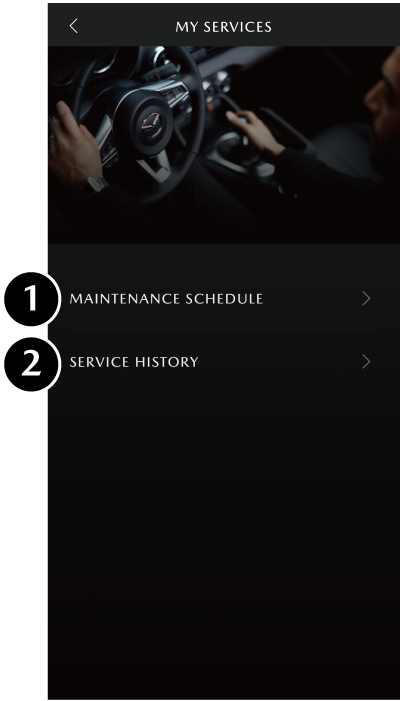
    MY SERVICES

    Provides information and schedules for vehicle maintenance and service.

    1 MAINTENANCE SCHEDULE Enables service appointments to be scheduled and confirms set appointments.
    2 SERVICE HISTORY Enables a maintenance service to be registered as service history.

    RECALL SEARCH

    You can check for recall information.

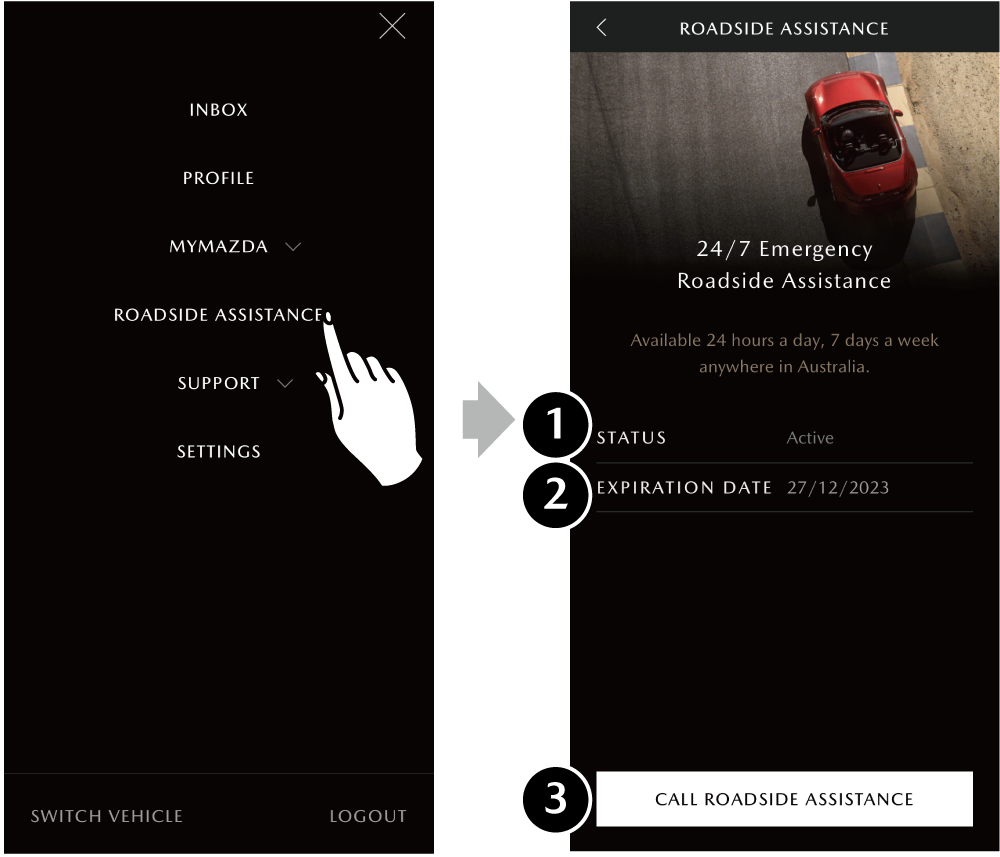
    ROADSIDE ASSISTANCE

    Enables Roadside Assistance to be requested and confirmation of information on the request.

    1 STATUS Displays your Roadside Assistance subscription status.
    2 EXPIRATION DATE Displays the expiration date of your Roadside Assistance subscription.
    3 CALL ROADSIDE ASSISTANCE Makes a phone call to Roadside Assistance.

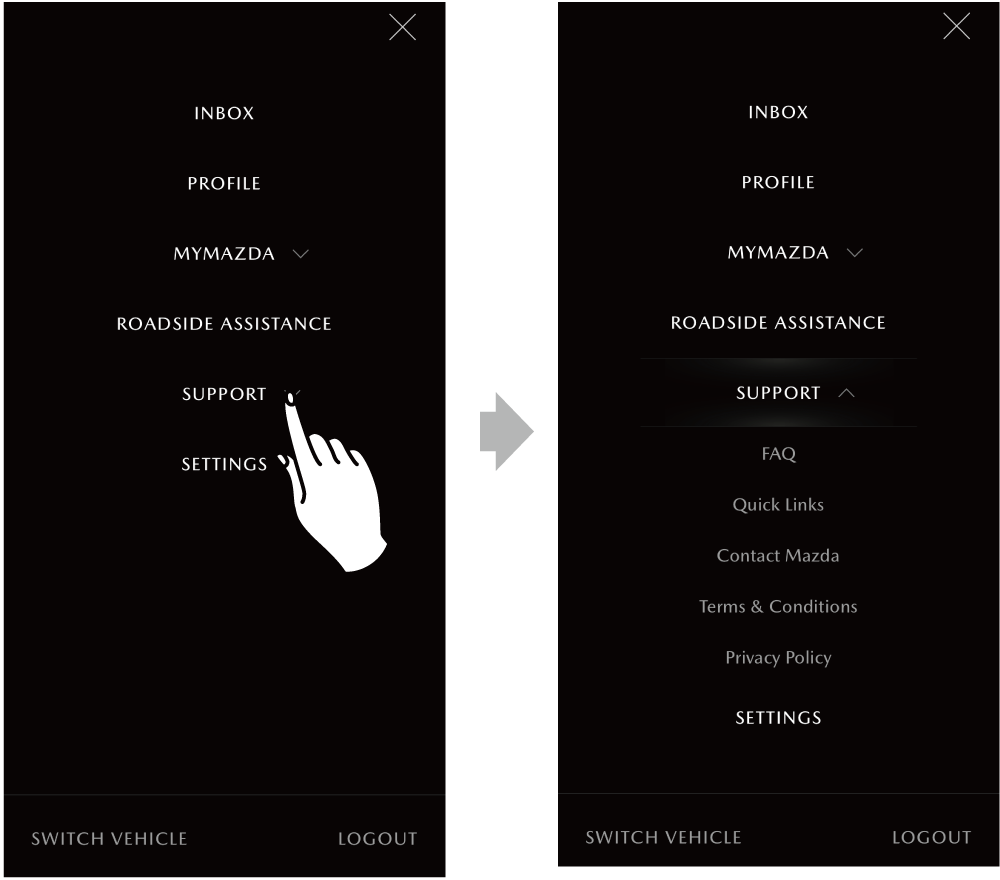
    SUPPORT

    Enables a variety of useful information to be checked.

    FAQ

    Displays frequently asked questions about the vehicle and service.

    Quick Links

    Links to the related information.

    Contact Mazda

    Opens the access page to the customer centre.

    Terms & Conditions

    Displays each type of term and condition.

    Terms & Conditions may be subject to changes.

    Privacy Policy

    Displays each type of privacy policy.

    The Privacy Policy may be subject to changes.

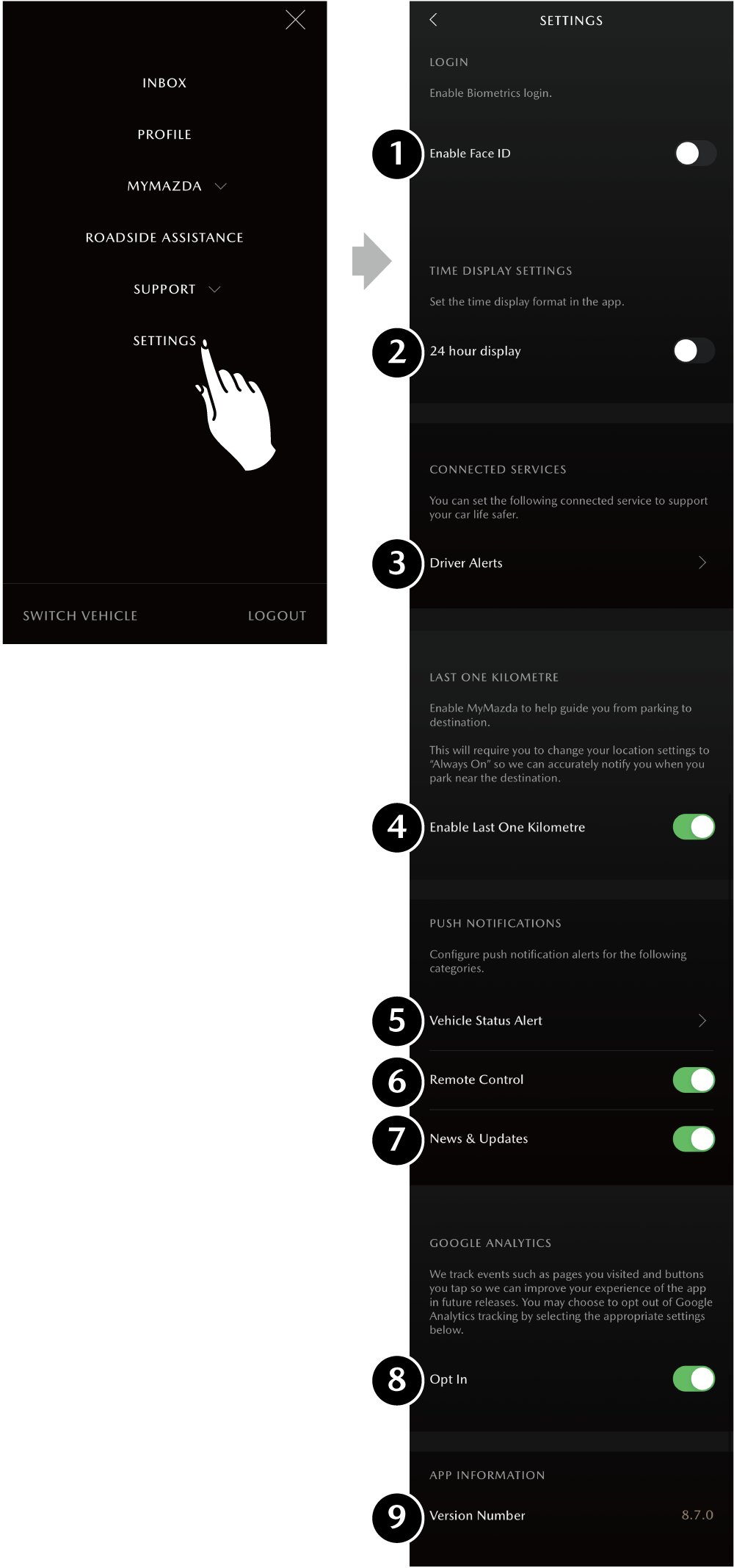
    SETTINGS

    You can make settings for the MyMazda APP.

    1 Enable Face ID Enables or disables Face ID for the device. Refer to the manual of the device in order to confirm whether Face ID can be used with the device.
    2 24 hour display The 24-Hour display setting can be switched.
    3 Driver Alerts Notification conditions can be set to your mobile phone.
    Guest Driver Alert
    4 Enable Last One Kilometre Enable Last Kilometre Navigation function can be set to on/off.
    Send Directions to Car
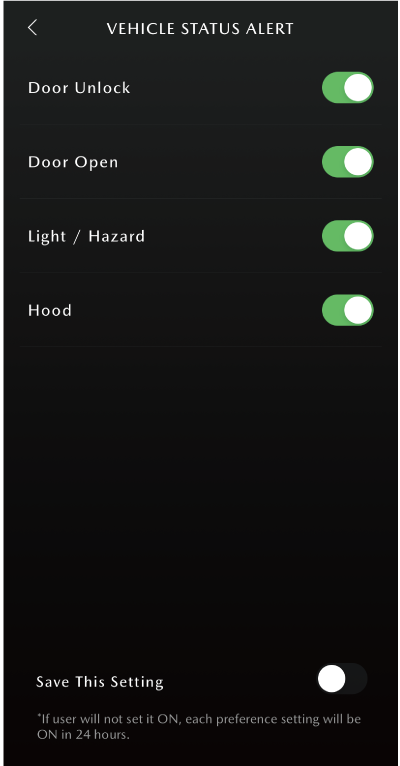
    5 Vehicle Status Alert Sets whether or not to receive Vehicle Status Alerts.
    Vehicle Monitor and Alert
    6 Remote Control Displays the request results when using the Remote Control.
    Remote Control
    7 News & Updates Sets whether or not to receive Information notifications.
    8 Google Analytics Sets consent/non-consent for Mazda to collect data.
    9 Version Number Displays the MyMazda APP version number.
    • Depending on your mobile phone, Face ID (item 1 above) may change to Touch ID.
    • If the Face ID or Touch ID setting on your mobile phone has not been enabled, item 1 above will not be displayed.
    • You can individually set whether o13not to receive Vehicle Status Alerts. (Setting items are different from each model.)
    • You will receive notifications when you enable push notifications on your mobile phone.