The following vehicle information can be monitored with the MyMazda APP and alerts can be set up to remind the driver if something is not in a certain state (such as doors are not locked).
Vehicle Status
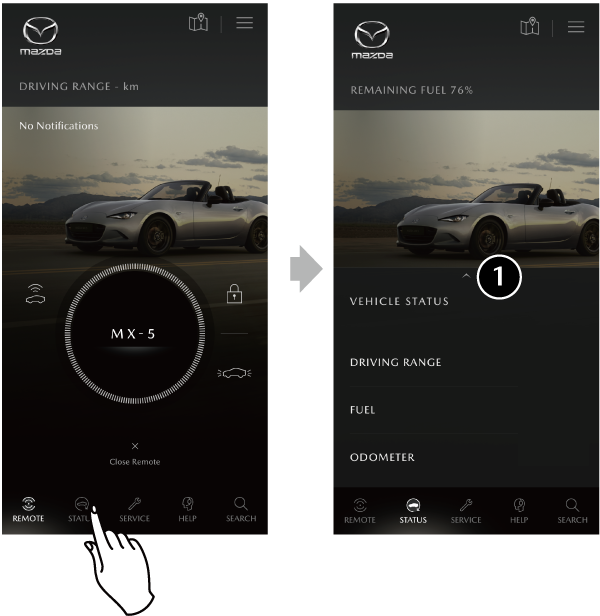
The status of the vehicle's doors, boot, and lighting systems can be checked by touching STATUS on the Main Navigation Menu.
When the icon is touched, detailed vehicle information is displayed.
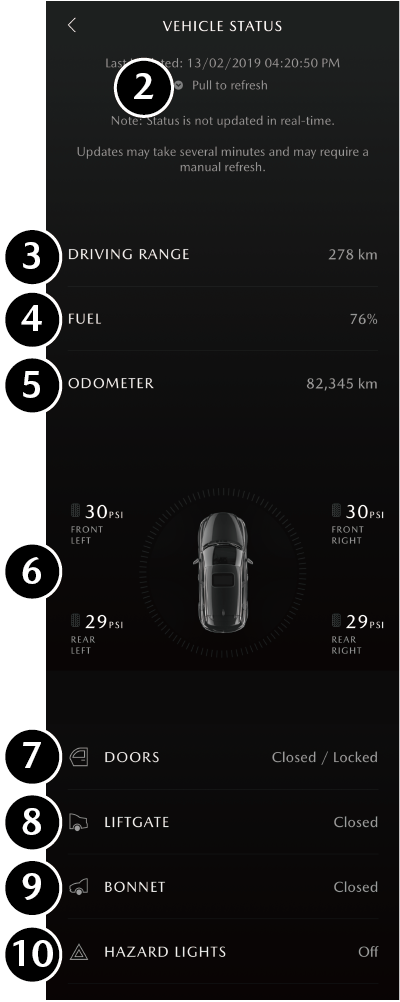
Pull to Refresh
Updates the displayed information.
DRIVING RANGE
Displays the range with remaining fuel.
FUEL
Displays the remaining amount of fuel in the fuel tank.
ODOMETER
Displays the total travelled distance.
Tyre Pressure
Displays the air pressure of each of the 4 tyres.
DOORS
Displays the door status and the close/lock status.
LIFTGATE
Displays the liftgate open/close status.
BONNET
Displays the bonnet open/close status.
HAZARD LIGHTS
Displays the hazard warning lights on/off status.
Vehicle Status data is updated when the engine is stopped.
While the engine is running, information is not updated even if the [Pull to Refresh] is touched.
To display the most recent information, slide downward and view it after the display information is updated.
Some vehicles have an added function which displays the battery power consumption status. If excessive battery power consumption is displayed, vehicle status, such as the doors and boot, is not displayed correctly.
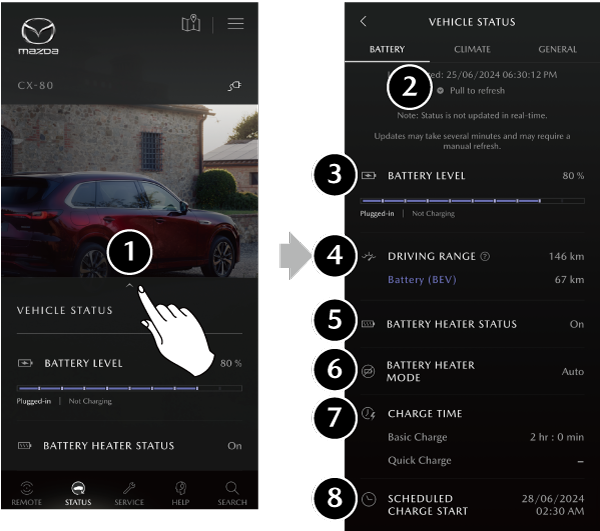
When the [BATTERY] tab is selected, you can check the battery control status.
Pull to Refresh
Updates the displayed information.
Battery Level
Displays the remaining battery charge level.
Driving Range
Displays the remaining distance-to-full discharge.
Battery Heater Status
Displays the battery heater operation status.
Battery Heater Mode
Displays the battery heater operation mode.
Charge Time
Displays the charge time.
Scheduled Charge Start
The next scheduled charging date and time are displayed.
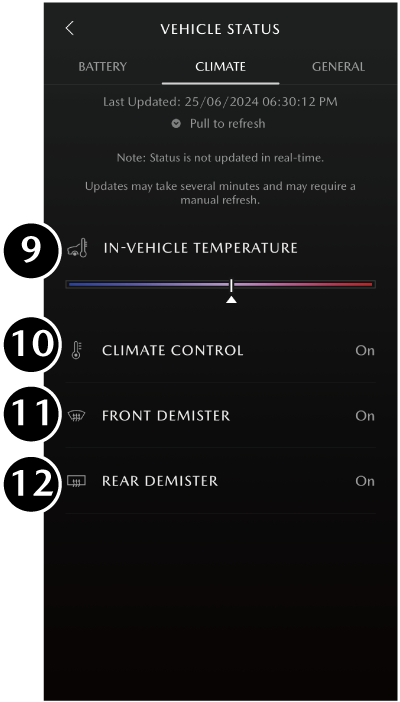
When the [CLIMATE] tab is selected, you can check the air-conditioning status.
In-vehicle Temperature
Displays the in-vehicle temperature.
Climate Control
Displays the air-conditioning on/off status.
Front Defroster
Displays the front window defroster status.
Rear Defroster
Displays the rear window defroster status.
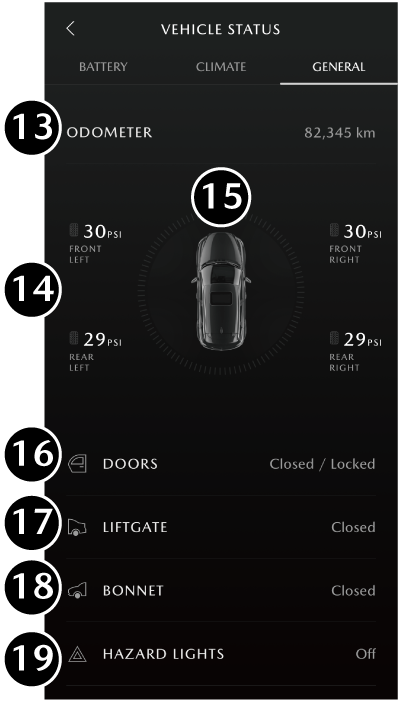
When the [GENERAL] tab is selected, you can check the vehicle status
Odometer
Displays the total travelled distance.
Tyre Pressure
Displays the air pressure of each of the four tyres.
Status Ring
Displays the error status of the registered vehicle (doors/bonnet/liftgate open or tyre pressure problem).
Door
Displays the door open/close status and the lock status.
Liftgate
Displays the liftgate open / close status.
Bonnet
Displays the bonnet open / close status.
Hazard Lights
Displays the hazard warning light status.
The vehicle status refers to the information when the last time the power switch was switched OFF. (However, it displays the latest status of the battery and air-conditioning)
To display the latest status, swipe downward.
When the power switch is switched ON, the information is not updated.
Some vehicles have an added function which displays the battery power consumption status. If excessive battery power consumption is displayed, vehicle status, such as the doors and boot, is not displayed correctly.
Vehicle Health Report
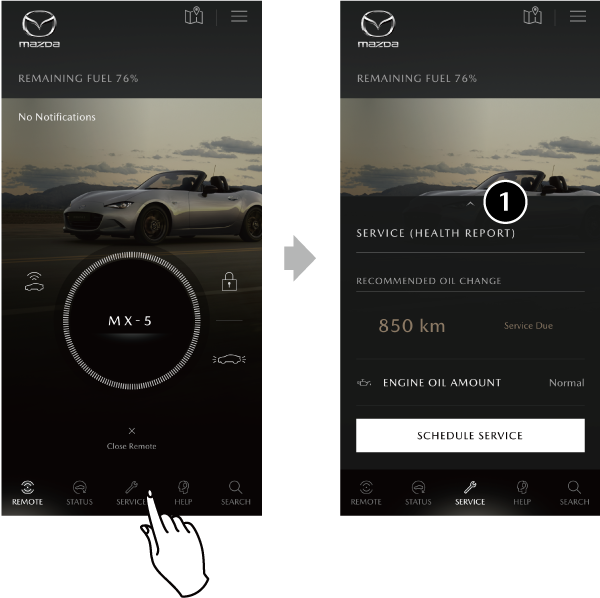
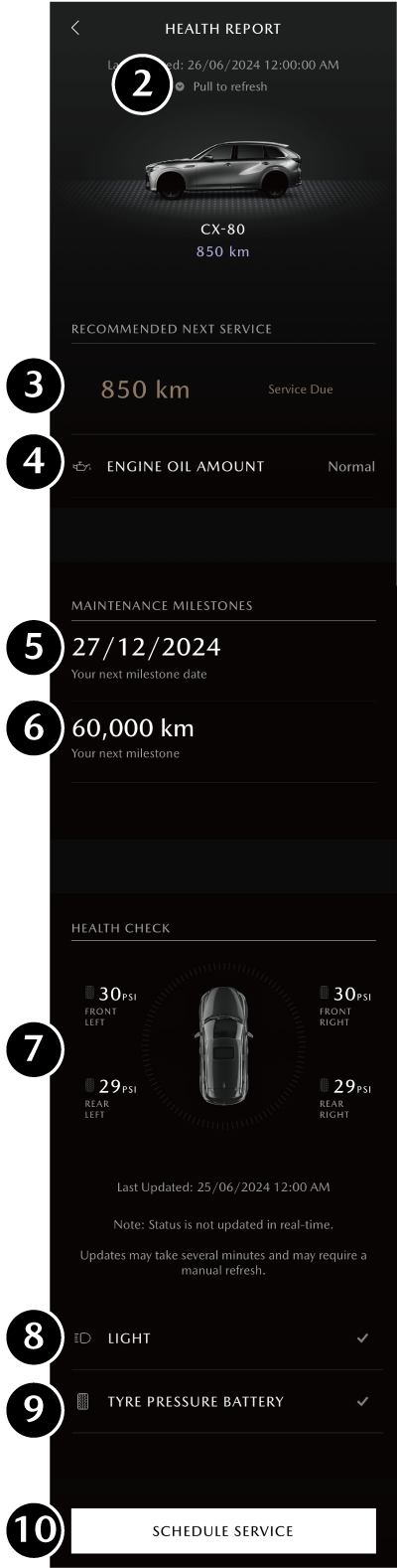
Enables you to check maintenance information such as engine oil status, and tyre air pressure status. The Vehicle Health Report can be checked by touching SERVICE on the Main Navigation Menu.
When the icon is touched, detailed vehicle information is displayed.
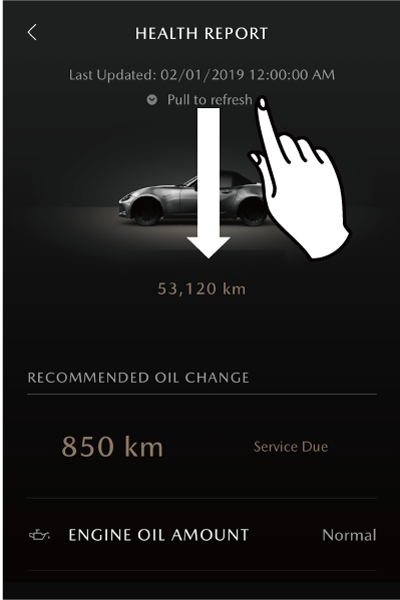
The Vehicle Health Report information is displayed when the engine is stopped.
If the engine is not started or stopped, the information is not updated and the same information is displayed.
To display the most recent information, slide downward and view it after refreshing the screen.
Pull to Refresh
Updates the displayed information.
RECOMMENDED OIL CHANGE
Displays the distance until the oil replacement is due as a guide.
ENGINE OIL AMOUNT
Displays the engine oil level information.
Your next milestone date
Displays the next vehicle inspection date.
Your next milestone
Displays an approximation of the driving range until the next inspection.
Tyre Pressure
Displays the air pressure of the 4 tyres.
LIGHT
Displays the light status. If any lights is abnormal, a message will be displayed.
(When normal, ✓ is displayed)
TYRE PRESSURE BATTERY
Displays the battery status of the tyre pressure sensors.
(When normal, ✓ is displayed)
SCHEDULE SERVICE
When maintenance work is required, a service shop appointment can be made. When you touch [SCHEDULE SERVICE], a service in reservation screen to the dealer is displayed.
Vehicle Status Alert
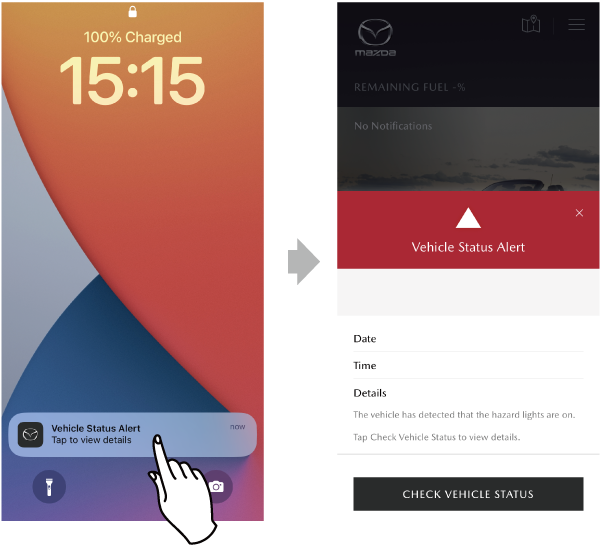
The MyMazda APP will be notified through the system if the vehicle detects that the driver forgot to perform an operation or there is an abnormal vehicle condition. This notification will be displayed on your mobile phone even if you have not launched the MyMazda APP.
By touching the displayed notification, the details can be checked.
A notification is sent if an operation such as one of the following is detected and considered to be made by mistake. The notification is sent when several minutes have passed after the ignition switch is switched OFF.
Forgetting to close the doors, boot or bonnet.
Forgetting to lock the doors.
Forgetting to turn off the hazard warning lights.
Even after a user oversight notification is transmitted once, if a change in the vehicle status, such as indicated above is detected, the user is notified.
When the vehicle is being serviced at a dealer, you may be notified depending on the what is being worked on.
If the engine has not been started for a long period of time and the doors are repeatedly opened and closed causing low remaining battery charge, a message is displayed on the multi-information display and a low battery charge warning beep may be activated for some vehicles. In this case, the following Connected Service functions will not be available.
Vehicle Status Alert/Remote Control/Find My Car
As for forgetting to lock the doors or turning off the hazard warning lights, the doors can be locked or the hazard warning lights can be turned off using the Remote Control without having to go back to the vehicle.
Remote Control
You can stop receiving Vehicle Status Alert notifications.
Menus of the MyMazda APP/SETTINGS
Vehicle Status Alert will stop sending notifications even if the driver stays in the vehicle with the engine turned off.
After all the doors are locked with a person in the vehicle, if the doors are unlocked an oversight notification will not be sent.
Only the most recent unread notifications are displayed on the home screen.
The same notifications will not be displayed in the push notifications, but will arrive directly in your inbox.
After 24 hours, notifications will be marked automatically as read and will not be displayed on the home screen.
Recall Notification
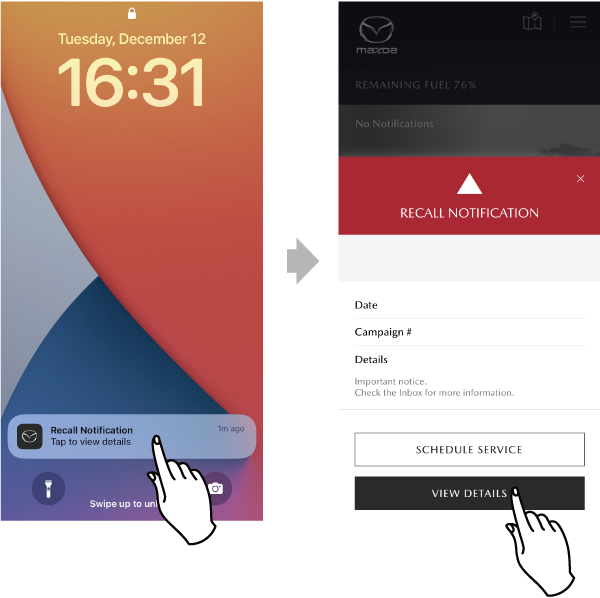
The MyMazda APP will notify you of recalls or other required actions, as well as the nature of a problem and the action details.
In addition, you can confirm the contents of the notification and contact the dealers registered in My Preferred Dealer.
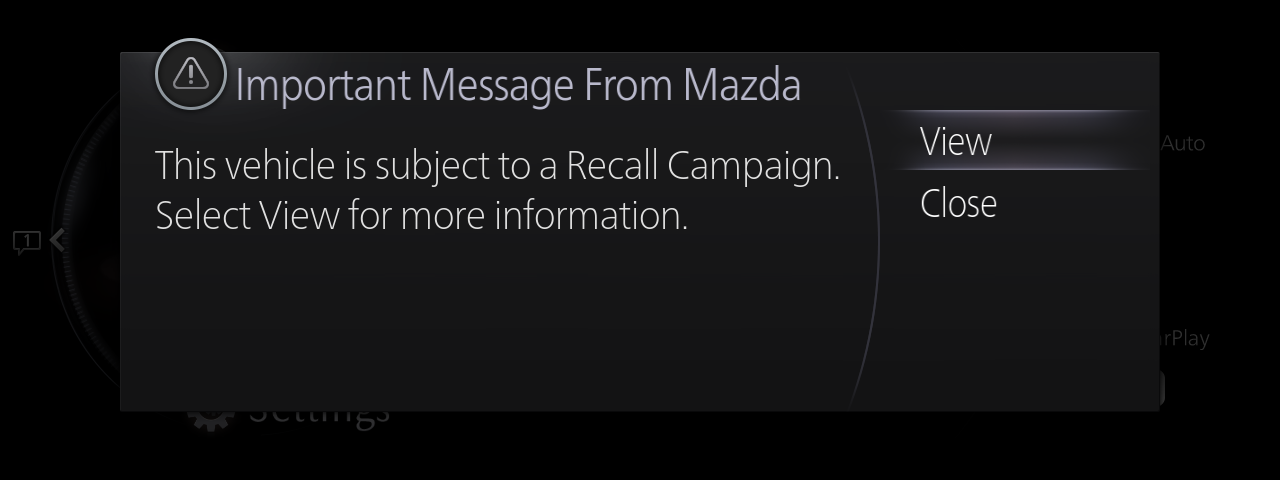
The need for recall or other actions is also indicated in the vehicle's instrument cluster and on the centre display.
When [View] is selected, you can confirm the nature of the problem and the action details.
Notification to the vehicle may remain for some time after handling of the problem has been completed by the dealer.
It is displayed each time the ignition is switched ON until you confirm the notification contents to the vehicle.
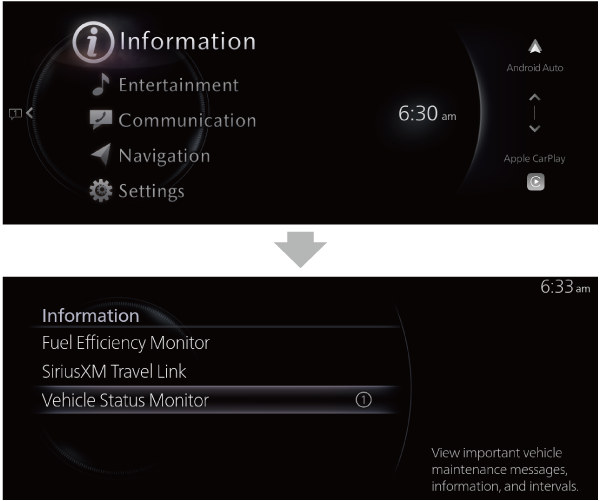
If [Close] is selected, you can confirm from [Information] → [Vehicle Status Monitor] on the home screen.